Website
Website widget
Turn any form into an instant booking experience with one script tag.
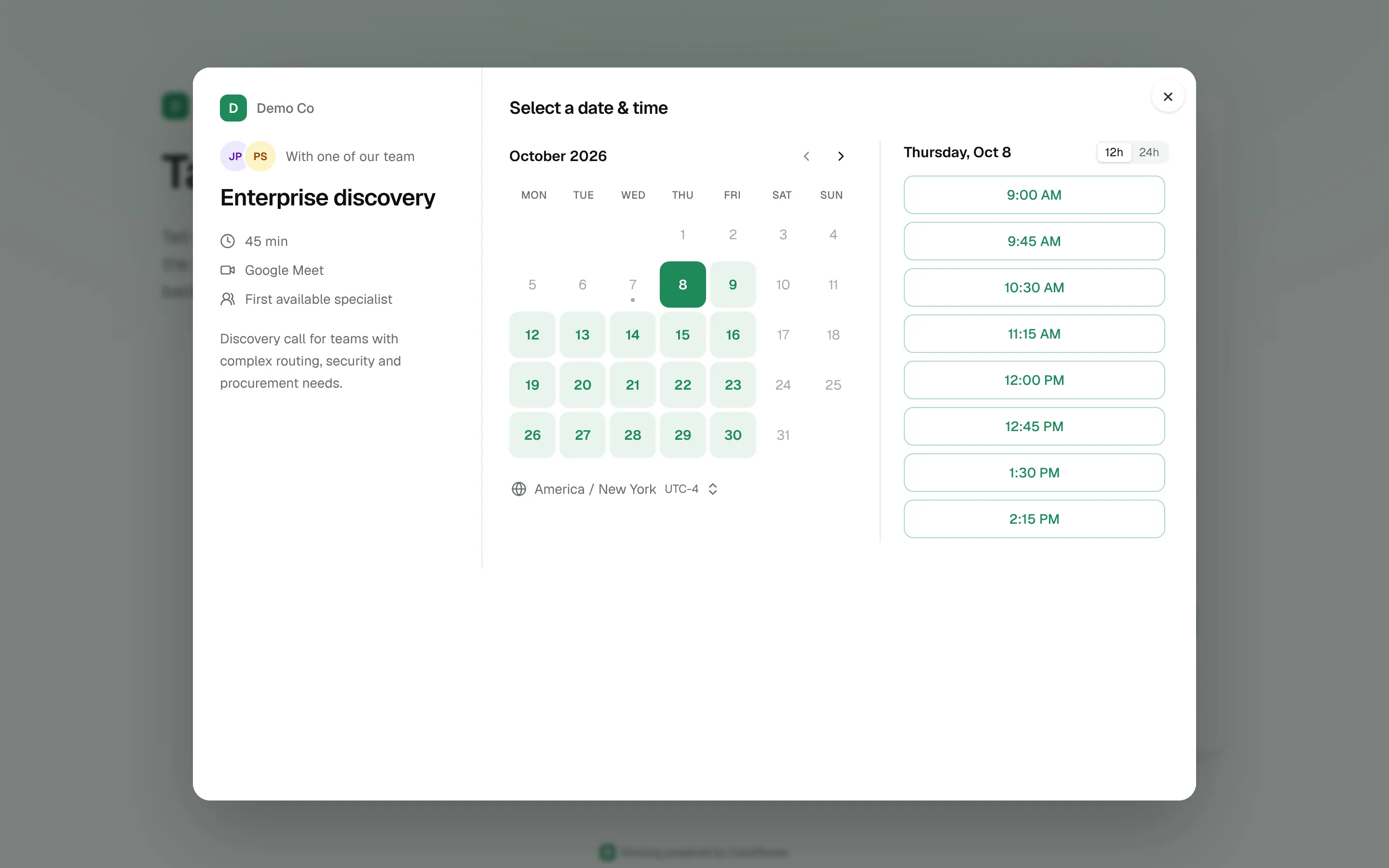
The website widget turns any form on your site into an instant booking experience. When a visitor submits, the widget sends the form to a router, and qualified leads see the right rep's calendar in a modal before they leave the page. Disqualified leads get a polite message or a redirect, and assigned leads are told who will follow up.
It's one script, loaded from your Cauliflower server. It has no dependencies and works with plain HTML forms, form builders, single-page apps and HubSpot forms.
Install the loader
Paste this snippet once on every page with a form, before the closing body tag or in your tag manager. Replace the host with your Cauliflower URL and acme with your workspace slug.
<script>
  (function (w, d) {
    w.cauliflower = w.cauliflower || function () { (w.cauliflower.q = w.cauliflower.q || []).push(arguments) };
    var s = d.createElement("script"); s.async = true; s.src = "https://cal.example.com/embed.js"; d.head.appendChild(s);
  })(window, document);
  cauliflower("init", { workspace: "acme" });
</script>
The first lines create a small cauliflower() queue so you can call commands right away; they run as soon as embed.js has loaded. The widget talks to the server it was loaded from.
Each router shows this snippet with your host and workspace filled in under Routers → your router → Install.
Bind a form
Tell the widget which form to watch and which router to send it to:
<form id="demo-form">
  <input name="email" type="email" placeholder="Work email" required />
  <input name="first_name" placeholder="First name" />
  <input name="company" placeholder="Company" />
  <select name="company_size">
    <option>1-50</option>
    <option>51-200</option>
    <option>201-1000</option>
  </select>
  <button type="submit">Book a demo</button>
</form>

<script>
  cauliflower("form", { router: "inbound", selector: "#demo-form" });
</script>
router is the router's slug (or its rtr_… id). On submit, the widget:
- Stops the browser's normal submission and disables the submit button.
- Collects every named field with
FormData. Fields with the same name become a list. - Adds the page URL, the referrer and UTM parameters (
utm_*,gclid,fbclid) from the current URL. UTM values are remembered for the browser session, so a visitor who lands on a campaign URL and fills in the form two pages later is still attributed. - Sends everything to the router and handles the outcome.
If your form is rendered after the page loads, for example by a form builder or a single-page app, form keeps looking for the selector for about 10 seconds. Each form is only bound once.
Declarative binding
Prefer HTML attributes? Add data-cauliflower-router to the form instead of calling form:
<form data-cauliflower-router="inbound">
  <input name="email" type="email" required />
  <button type="submit">Talk to sales</button>
</form>
Any element with data-cauliflower-link opens a booking link in the modal when clicked:
<button data-cauliflower-link="product-demo">Book a demo</button>Attributes are read once when the page loads. Use the JavaScript API for elements added later.
Keeping your existing submission
By default the visitor stays on the page and your form is never submitted anywhere else. If the form also needs to reach its original action URL, for example your marketing automation, pass submit: "after" (or add data-cauliflower-submit="after" to the form). The widget submits the form natively once the modal closes, or right after routing when no modal opens.
Forms with their own JavaScript
The widget intercepts the submit event before other handlers on the form, so your own submit handlers don't run. If your form is managed by a framework or script that sends the data itself, keep that logic and call route from it instead of binding the form. See Custom forms.
Field mapping
Cauliflower recognizes common field names automatically. Names are compared in lowercase with spaces and dashes turned into underscores, so Work Email and work-email both match work_email.
| Lead attribute | Recognized names |
|---|---|
| Email (required) | email, work_email, email_address, emailaddress, business_email |
| First name | first_name, firstname, first, given_name, fname |
| Last name | last_name, lastname, last, family_name, surname, lname |
| Full name | name, full_name, fullname, your_name |
| Company | company, company_name, companyname, organization, organisation, account, business |
| Phone | phone, phone_number, phonenumber, mobile, telephone, tel |
| Country | country, country_code, region |
When your field names differ, map them with map. Keys are Cauliflower's names, values are your form's field names:
cauliflower("form", {
  router: "inbound",
  selector: "#signup",
  map: { email: "contact_email", company: "org", company_size: "employees" },
});
Every other field is sent as-is and can be used in path conditions, so a company_size select becomes a company_size field you can route on. A full name is split into first and last name when those are missing. Fields whose names look like passwords or card numbers are dropped before routing. An email is required: submissions without a valid one are rejected.
To adjust fields before routing, or to skip routing for some submissions, use beforeRoute:
cauliflower("form", {
  router: "inbound",
  selector: "#demo-form",
  beforeRoute: function (fields) {
    if (fields.inquiry_type === "support") return false; // don't route support requests
    fields.plan = "enterprise";
    return fields;
  },
});
What visitors see
| Outcome | What happens on the page |
|---|---|
| Sent to calendar | A modal opens with the router's booking page, already filled in with the visitor's details. After booking they see the confirmation, and a redirect if the path or meeting type has one. |
| Disqualified | A card titled "Thanks for reaching out" with the path's message. If the path redirects, the visitor is sent there, immediately or after the configured delay. With no message and no redirect, nothing is shown. |
| Assigned | A card titled "You're all set" with the path's message, or "Alex Kim will be in touch shortly." using the assigned rep's name. If the path also redirects, the visitor is sent there instead, immediately or after showing the path's message for the configured delay. |
| Redirected | The visitor is sent to the URL, after an optional delay during which a short message is shown. |
| No match | Nothing is shown. Add a catch-all to handle these leads. |
Visitors close the modal with the close button, a click on the backdrop or the Escape key. On small screens the modal fills the screen.
You can react to each outcome with callbacks and events, for example to send a conversion to your analytics. See Callbacks and Events.
Hosted router page
Every router has a hosted page with a form built from the router's Form fields, wired to the widget. It's a real page you can share, headed with your workspace name (for example "Talk to Acme"), so you can link to it from emails, ads or your signature. Copy its URL under Routers → your router → Install → Hosted router page:
https://cal.example.com/try/acme/inboundTo test a router, click Test it next to the URL. It opens the page with ?test=1, which adds a "Testing router" banner. After each submission the page lists the widget events that fired, which is a quick way to check paths, messages and redirects.
Submissions on the hosted page are real: they create leads, routing events and meetings, and send invitations. Use a teammate's email address when testing. The page submits through the router's Router link entry point, so that entry point must be turned on.
Widget security
By default any website can submit leads to your routers. To restrict this, list your sites under Settings → Workspace → Widget security & qualification → Allowed website origins, one per line:
https://acme.com
https://www.acme.com
*.acme.com| Entry | Matches |
|---|---|
https://acme.com | Exactly that origin. |
acme.com | https://acme.com and http://acme.com. |
*.acme.com | Any subdomain, such as https://www.acme.com or https://go.acme.com, but not acme.com itself. |
Routing requests from other sites are rejected with "This website is not allowed to use this workspace's widget". Cauliflower's own pages, such as the hosted router page, are always allowed. The list applies to browsers; server-side calls should use the REST API with an API key.
The router itself also has to accept website traffic: the Website form entry point must be on in the router's trigger. Public routing is rate limited to 30 submissions per minute per IP address. See Security.
Custom forms
For forms you don't control directly, call route with the values yourself. This is the way to connect HubSpot embedded forms, which post their own data:
<script>
  window.addEventListener("message", function (event) {
    if (event.data.type === "hsFormCallback" && event.data.eventName === "onFormSubmitted") {
      var values = {};
      (event.data.data.submissionValues ? Object.entries(event.data.data.submissionValues) : [])
        .forEach(function (e) { values[e[0]] = e[1]; });
      cauliflower("route", { router: "inbound", lead: values });
    }
  });
</script>
The same pattern works for any form library: let it submit as usual, then pass the values to route from its success callback.
async function onSubmit(values) {
  await saveToYourBackend(values);
  cauliflower("route", { router: "inbound", lead: values });
}
route shows the same modal and messages as a bound form. Snippets for HTML forms, HubSpot, the JavaScript API and the server-side API are on each router's Install tab.