Self-hosting
Platform admin
Manage every workspace and user, impersonate, suspend and audit.
Platform admins run the installation itself rather than a single workspace. The admin portal at /admin shows every workspace and user, the health of background jobs and webhooks, and the system configuration. From there you can help people by impersonating them, suspend or delete accounts, remove workspaces, and retry failed work.
Every action taken in the portal is written to an audit log that other platform admins can review.
Who is a platform admin
Platform admin is separate from workspace roles. A workspace owner manages their workspace; a platform admin manages the whole installation, whether or not they belong to any workspace. Someone is a platform admin when:
- They created the first account on the installation. The very first sign-up is made a platform admin automatically. If you seed demo data before anyone signs up, the demo owner (
[email protected]) is made platform admin instead (see Seeding demo data). - Their email is in
PLATFORM_ADMIN_EMAILS. This comma-separated list (for example[email protected],[email protected]) always grants access to the portal, matched case-insensitively. Listed accounts also get the admin role stored on the account automatically: when they sign up, on their next sign-in, and on their next page load while signed in. See Configuration. - Another admin promoted them with Make platform admin in the portal.
Platform admins see a Platform admin link in their account menu. Signed-in users who aren't admins get a "not found" page at /admin, so the portal isn't discoverable.
Keep a fallback admin
Put at least one address you control in PLATFORM_ADMIN_EMAILS. It keeps access to the portal even if someone removes its admin role, so you can't lock yourself out by accident.
Impersonation, suspensions, role changes, signing users out and deleting users are carried out by the sign-in system, which checks the admin role stored on the account. If you add an address to PLATFORM_ADMIN_EMAILS while that account is signed in, it can open the portal right away, but because sessions are cached for up to five minutes, those actions can take up to five minutes to start working. Signing out and back in makes them work immediately.
The admin portal
Overview
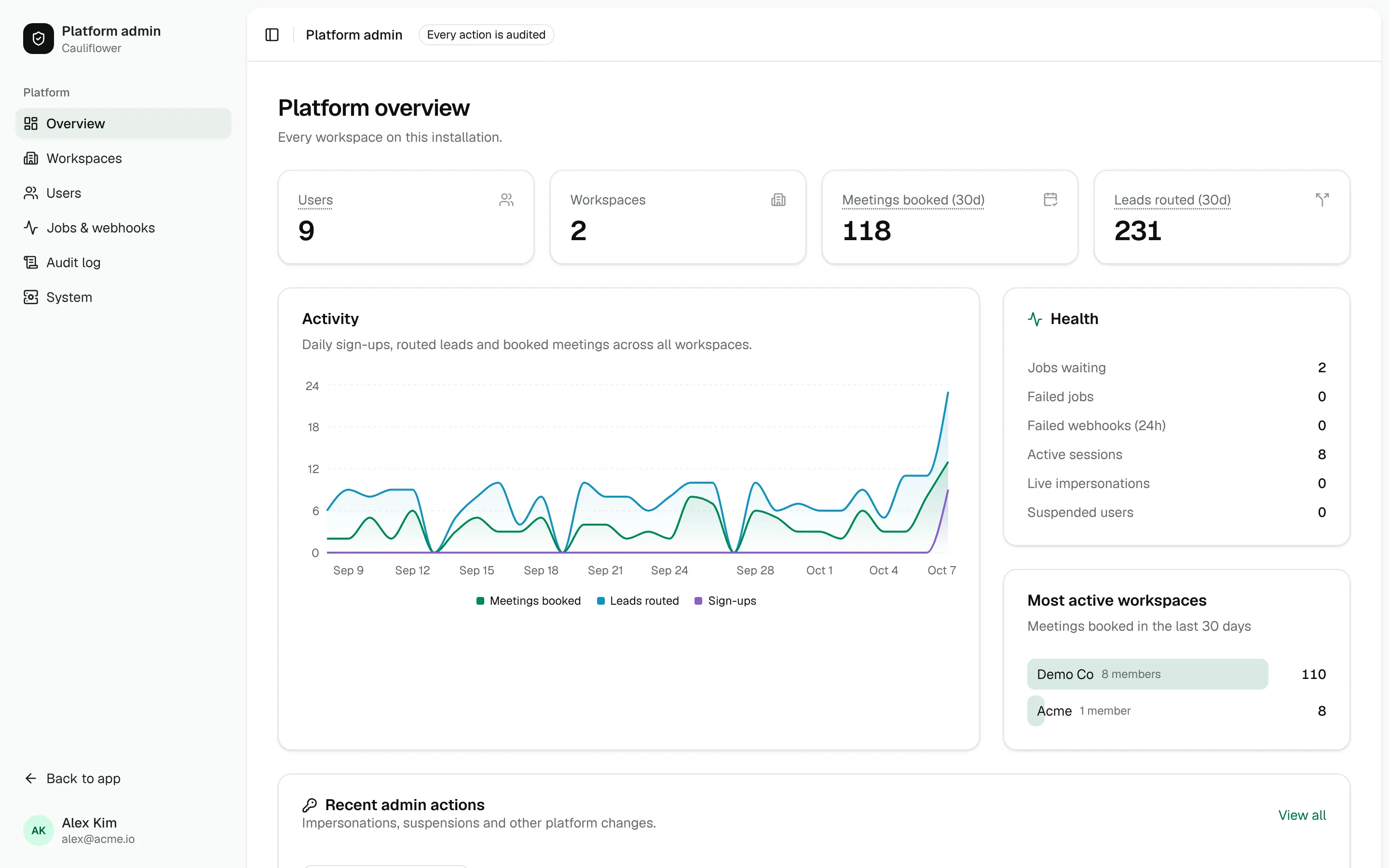
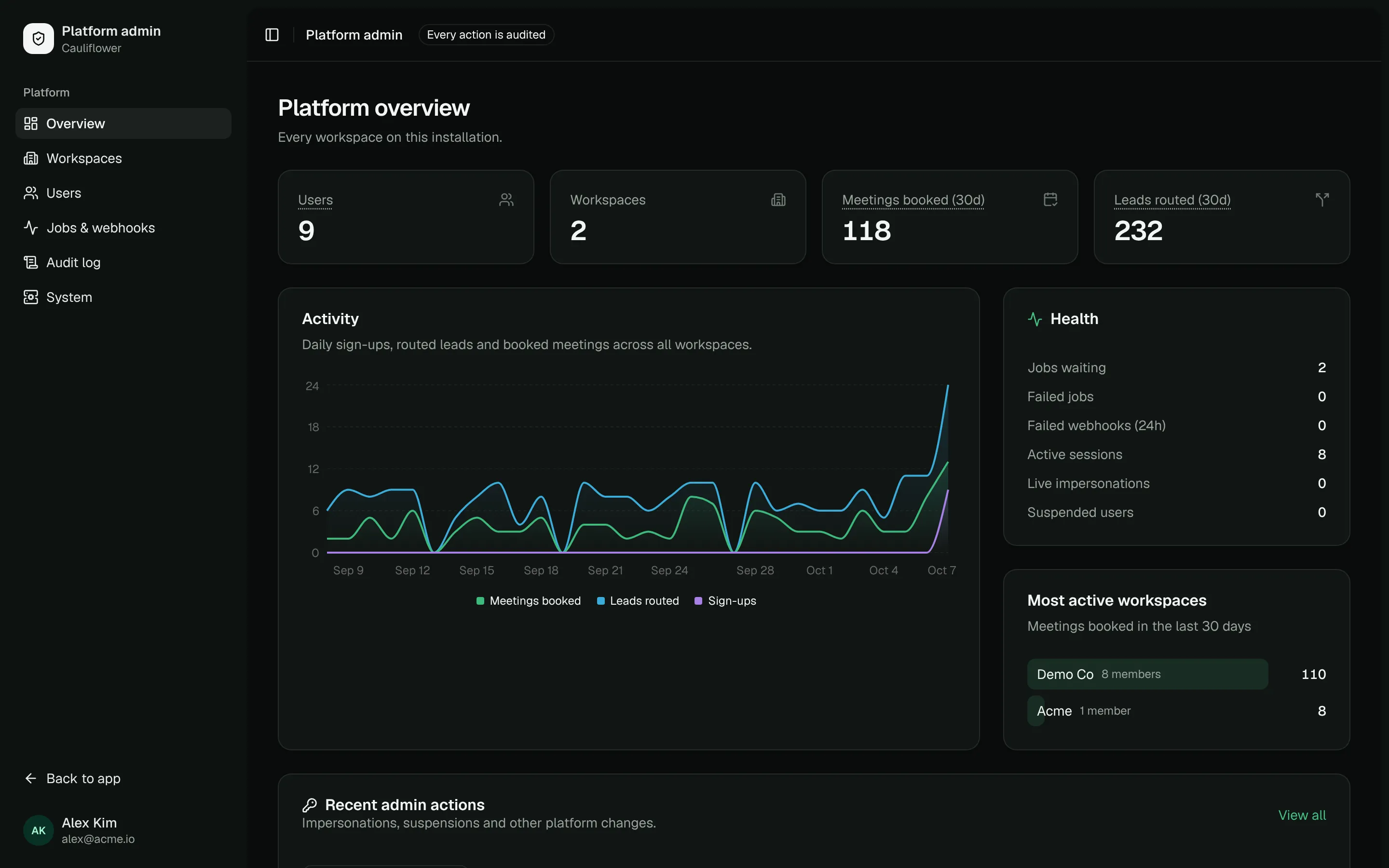
Totals for users (and how many joined in the last 30 days), workspaces, meetings booked and leads routed in the last 30 days, with a 30-day chart of routed leads, booked meetings and sign-ups. A health panel shows jobs waiting, failed jobs, failed webhook deliveries in the last 24 hours, active sessions, live impersonations and suspended users. Below that are the most active workspaces and the latest admin actions.
Workspaces
Every workspace with its owner, plan, member, router and meeting counts, last activity and creation date. Search by name or slug. New workspace creates one for an existing account, who becomes its owner, with a plan and seats and, optionally, starter content.
Open a workspace to see its usage for the last 30 days, the status and last error of each integration and its recent activity. From there you can:
- Edit its name, URL and time zone.
- Change its plan and seats and see how much of each limit it uses. See Plans and seats.
- Manage members: change roles, give or take back seats, remove someone from the workspace (or add them back), add an existing account with Add member, and impersonate.
- See its features, where each value comes from, and override one for exceptions like a trial.
- Delete the workspace.
Users
Every account with its status, number of workspaces, when it was last seen and when it joined. Search by name or email, and filter to Platform admins or Suspended. New user creates a verified account, optionally with a password, as a platform admin and in a workspace with a role. Without a password, Cauliflower emails them a link to choose one (they can also sign in with Google).
A user's page shows their workspaces (with Add to workspace), active sessions (device, IP address and last activity), how many meetings they host, and the admin actions taken on their account. Edit changes their name, email, time zone and whether their email is verified; Send password reset emails them a reset link. The actions menu on each row and on the user page holds everything described under Managing users.
Plans
Pricing tiers with features, limits and seats, and the plan new workspaces start on. See Plans and seats.
Jobs and webhooks
Two tabs covering background work across all workspaces:
- Background jobs — emails, reminders, CRM sync and router notifications, filtered by Failed, Queued or Succeeded, with attempts and the last error.
- Webhook deliveries — outgoing webhooks by the same statuses, with the endpoint and response.
Each tab lists the 100 most recent items for the selected status.
Audit log
The last 200 actions taken from the portal, with the time in UTC, the admin, the action, a summary and the admin's IP address where it was recorded. Impersonation sessions, suspensions, role changes, deletions, retries and redeliveries all appear here.
System
How the installation is configured: the public URL, Postgres version, how many migrations are applied and when the latest ran, and the Node.js version. It also shows the sign-up mode, allowed sign-up domains, how many addresses are in PLATFORM_ADMIN_EMAILS, and whether Google Calendar, email delivery (Resend or SMTP), Salesforce sign-in, a dedicated encryption key, in-process background jobs, migrations on boot and the marketing site are enabled. These are read-only — change them with environment variables and restart.
Integrations
Services that apply to the whole installation. Credentials are encrypted at rest and never shown again after saving.
- Email (Resend) — the Resend API key, sender and reply-to address used for every workspace's emails, with a Send test button. See Email.
- PostHog — product analytics. Add the project API key and host (US, EU or your own proxy) and Cauliflower sends server-side events for sign-ups, onboarding, workspace actions (routers created, integrations connected, meetings booked…) and AI usage, grouped by workspace. Optionally capture anonymous visits on the marketing site and record sessions in the app. A personal API key and project id let you sync feature flags.
- Platform CRM — connect Attio, HubSpot or Salesforce to track your own customers: every new account becomes a person, every workspace a company (by the owner's email domain), and completed onboarding answers are added as a note. Sync everyone now backfills existing accounts.
Feature flags
Flags decide what each workspace can use. Built-in flags match the plan features (the AI assistant, HubSpot, Salesforce, Slack notifications, custom emails, hosted page customization, removing branding, API & MCP and webhooks), so for those the workspace's plan normally decides. A flag's value for a workspace is worked out in this order:
- Off for everyone: a flag switched off is off everywhere, whatever the plan says. Use it as a kill switch.
- Override for that workspace (force on or off).
- Plan: whether the workspace's plan includes the feature.
- Rollout: the percentage of workspaces that get it, bucketed deterministically so the same workspaces stay in as you raise it. Flags you add yourself use this; check them in code with
isFeatureEnabled(key, workspaceId).
Each flag shows how many workspaces have it and its usage in the last 30 days.
With PostHog connected, Push to PostHog mirrors flags (as workspace-group flags) for experiments and cohorts, and Import from PostHog brings in flags created there. A workspace's page in the portal lists its features, where each value comes from, and an override for each.
AI assistant
Choose the AI providers and models behind the in-app AI assistant: Anthropic (Claude), OpenAI or any OpenAI-compatible API (OpenRouter, Together, a local gateway…). Add a key per provider, test it, pick the default model, decide whether people may switch models, set a daily message limit per workspace and add instructions that apply to every conversation. The page shows questions asked, workspaces using it and tokens used in the last 30 days.
Onboarding
Shape the first-run experience for new sign-ups: the welcome headline, which steps run (about you, team questions, attribution, connecting tools, inviting teammates) and the questions asked — single or multiple choice, short or long text, optional "Other" answers, required or not. Insights shows where people stop and how often each answer was picked, including "Where did you hear about us?"; Responses lists recent sign-ups with their answers.
Content
The blog CMS: write and schedule posts, draft social copy with AI and connect a publish webhook. See Blog and content API.
Impersonation
Impersonation lets you see Cauliflower exactly as a user does, to debug a router, check why a calendar shows no times, or fix a setting for someone.
Start
Click Impersonate on a user's page, in the actions menu of the users list, or next to a member on a workspace page. You can't impersonate yourself, a suspended user or another platform admin. The option is hidden or disabled for admin accounts, and trying it anyway returns "Platform admins can't be impersonated. Remove their admin access first."
Work as the user
You're taken to their dashboard, signed in as them. An amber banner across the top of every page shows whose account you're using and reminds you: "Changes you make are logged under their name, and the session is in the platform audit log."
Stop
Click Stop impersonating in the banner. You're returned to your own session, on that user's page in the portal.
Rules that apply while impersonating:
- Sessions are short. An impersonation session lasts at most one hour.
- No admin portal.
/adminis unavailable while you're impersonating, even though your own account is an admin. Stop impersonating to get back. - Everything is attributed. Starting and stopping are recorded in the platform audit log with the target user and your IP address, and the overview counts live impersonations. Changes you make inside a workspace appear in that workspace's audit log under the impersonated user, so keep sessions focused on the task at hand.
Managing users
All of these live in the actions menu on the users list and on a user's page. You can't use them on your own account, except Sign out everywhere.
Suspend and restore
Suspend blocks an account without deleting anything. Enter an optional reason and pick a duration: 1 day, 7 days, 30 days or Until restored. The reason is an internal note for other admins; the user never sees it. All of the user's sessions are revoked, so they're signed out within a few minutes (an open browser tab can keep working for up to five minutes while its cached session expires), and they always see "This account has been suspended. Contact your administrator." when they try to sign in. Their meetings, routers and other data stay in place.
The reason (or "Suspended by an administrator" if you leave it blank) and the end date are shown on the user's page and in the audit log. Timed suspensions end on their own; Restore access ends any suspension right away.
Sign out everywhere
Revokes every active session of the user, on every device, within five minutes. Use it after a lost laptop or a password change. Nothing else about the account changes.
Make or remove platform admin
Make platform admin grants access to the portal; Remove platform admin takes it away. You can't remove your own admin access, and people listed in PLATFORM_ADMIN_EMAILS stay admins as long as they're listed: their stored role comes back on their next sign-in or page load.
Delete a user
Delete user removes the account, its sessions and its workspace memberships. To confirm, type the user's email address. This can't be undone. Accounts that host meetings can't be deleted, so meetings never disappear with them: suspend those instead. Before deleting someone who owns a workspace, make sure another member is an owner.
Deleting a workspace
On a workspace's page, Delete workspace removes the workspace with every router, booking link, lead, meeting and webhook in it. Member accounts are kept, including their memberships in other workspaces. To confirm, type the workspace's slug. This can't be undone, so take a database backup first if there's any doubt.
Retrying failed work
Failed jobs
Jobs are retried automatically up to six times with growing delays. When a job still fails — for example because SMTP was misconfigured or a CRM token expired — it shows up under Jobs & webhooks → Background jobs → Failed with its last error. Fix the cause, then click Retry: the job's attempts are reset and it runs on the next scheduler tick. Only failed jobs can be retried.
Webhook deliveries
Failed deliveries from every workspace are listed under Jobs & webhooks → Webhook deliveries. Redeliver sends a fresh copy of the same event to the endpoint right away, with the same event id so receivers can deduplicate it. Workspace admins can do the same for their own endpoints under Developers → Webhooks.
Finished jobs are kept for 7 days, and failed jobs and webhook deliveries for 30 days, before they're cleaned up.