Getting started
Quickstart
From an empty install to a routed, booked meeting in about ten minutes.
This guide takes you from an empty install to a lead that a router has qualified and booked onto a calendar. You will run Cauliflower locally, create a workspace, add a path to the starter router, check it with the live preview and book a real meeting through the router's hosted page.
Plan on about ten minutes. All you need is Node.js and PostgreSQL. Google Calendar, your CRM and email are optional for a first run, and you can connect them later.
Before you start
- Node.js 20.9 or later and pnpm 10
- PostgreSQL 14 or later, with an empty database for Cauliflower
- Optional: a Google OAuth client for calendar sync (see Google Calendar) and a Resend API key (or SMTP credentials) for confirmation emails (see Email)
From install to booked meeting
Install and start the app
From a checkout of the repository, install dependencies, create your environment file, run the migrations and start the app:
pnpm install
cp .env.example .env
pnpm db:migrate
pnpm dev
Before you run pnpm db:migrate, open .env and set at least DATABASE_URL (your Postgres connection string) and BETTER_AUTH_SECRET (generate one with openssl rand -base64 32). The app starts on http://localhost:3000.
Prefer Docker?
The bundled Compose file starts Postgres and the app together. Copy .env.example to .env, set APP_URL and BETTER_AUTH_SECRET, then run docker compose up -d --build. Migrations run automatically on boot. See Deploying for production setups.
Create your account and workspace
Open http://localhost:3000/signup and create an account. The first person on a fresh install can always sign up; after that, new people need an invitation unless you change SIGNUP_MODE (see Configuration).
Onboarding asks for three things:
- Company or team name, for example "Acme Inc."
- Booking page URL, the workspace slug used in public links such as
/book/acme/demo - Default time zone
Click Create workspace. You become the workspace owner, and Cauliflower seeds a working setup so you can test immediately: a Sales team with you in it, two booking links and a router called Website demo requests. The table below lists exactly what is created.
Connect your calendar
Go to Availability and click Connect Google Calendar. Cauliflower then reads your free/busy times and creates events with Google Meet links when meetings are booked. On the same page you can adjust your working hours, which default to Monday to Friday, 9:00 to 17:00 in your time zone.
You can skip this for a first test. Without a connected calendar, available times come from your working hours and the meetings already booked in Cauliflower.
Add a path to the starter router
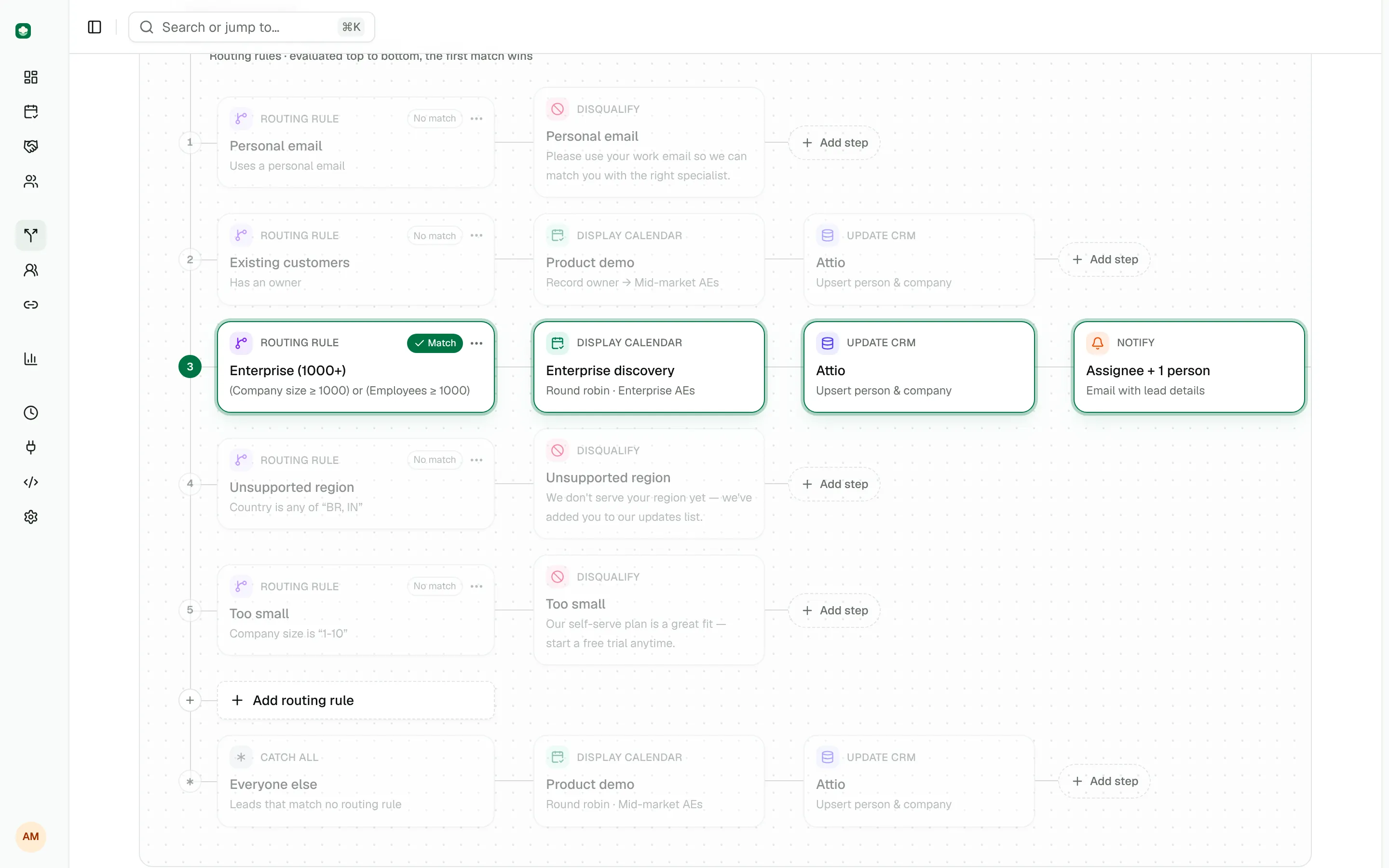
Open Routers and select Website demo requests. The canvas shows the trigger, the lead matching node, two paths and the catch-all:
- Personal email addresses disqualifies leads that use Gmail, Outlook and similar providers.
- Existing accounts sends leads that already have an owner to that owner's calendar.
- Everyone else (the catch-all) shows the Product demo calendar for the Sales team.
Now add a path for larger companies. Click Add routing rule and choose Rule + Display calendar. Then:
- Click the new path node, rename it to "Large companies" under Path name.
- In its condition, pick the Company size field, choose the operator is any of and enter
201-1000, 1000+. - Click the path's Display calendar node and set Meeting type to Product demo. Under Show availability of, keep Team via round robin with the Sales team.
Paths run top to bottom and the first match wins, so the new path sits after the two starter paths and before the catch-all. Click Publish changes. If the button is disabled, open the issues badge next to it to see what still needs a value.
Preview a few leads
Click Preview. The preview runs your current flow with sample data without saving anything, sending email or touching your CRM. Use the preset buttons:
- Personal email (
[email protected]) ends as Disqualified on the Personal email addresses path. - Enterprise lead (company size
1000+) matches Large companies and shows the calendar of the Sales team. - SMB lead (company size
11-50) falls through to the catch-all.
The result lists the outcome, the matched path, whose availability is shown and every condition with the value it was compared against. The canvas highlights the matched path. See Routers for everything the preview shows.
Book a real meeting
Open the router's Install tab and, under Hosted router page, click Test it. This hosted page renders the router's form and submits through the same widget your website will use.
Fill it in with a work email address (a personal address is disqualified by the first path) and choose a company size. Submit, pick a time in the calendar that opens and confirm.
Submissions on the hosted page are real: they create leads, routing events and meetings, and send invites when Google Calendar and email are configured. Use your own or a teammate's address.
You have now routed and booked a lead. Check the result in three places:
- Meetings lists the new meeting with the source Router.
- Leads shows the lead with the status Booked, its submitted fields and its routing history.
- The router's Logs tab shows the decision, the path that matched and who was assigned.
Put it on your website
When you are ready for real traffic, paste the loader once on your site and bind your form to the router by its slug:
<script>
  (function (w, d) {
    w.cauliflower = w.cauliflower || function () { (w.cauliflower.q = w.cauliflower.q || []).push(arguments) };
    var s = d.createElement("script"); s.async = true; s.src = "http://localhost:3000/embed.js"; d.head.appendChild(s);
  })(window, document);
  cauliflower("init", { workspace: "acme" });
  cauliflower("form", { router: "inbound", selector: "#demo-form" });
</script>
The router's Install tab has this snippet with your own URL and slugs filled in, plus versions for HubSpot forms, the JavaScript API and server-side calls. The website widget guide covers field mapping and allowed origins.
What the starter workspace contains
| Object | What is created |
|---|---|
| Team | Sales, using weighted round robin, with you as the only member |
| Booking link | Product demo: 30 minutes, round robin across Sales, 2 hours minimum notice, 10 minute buffer after, asks for Company and "What would you like to cover?" |
| Booking link | Intro call: 15 minutes, one host (you) |
| Router | Website demo requests (slug inbound) with the fields Work email, First name, Last name, Company and Company size |
| Router paths | Personal email addresses (disqualify), Existing accounts (owner's calendar, falling back to Sales), catch-all (Product demo with Sales) |
The router has CRM lookup turned on and Apollo set to enrich leads your CRM doesn't know. Both do nothing until you connect a CRM or Apollo under Integrations.
Want sample data?
pnpm db:seed creates a separate "Demo Co" workspace with 8 people, 2 teams and about 60 days of routing activity, which is useful for exploring reports. Sign in as [email protected] with the password demo-password-123.
Next steps
Workspaces, leads, routers, teams, booking links, meetings and routing events.
Build a routerTriggers, lead matching, paths, the catch-all and publishing.
Teams and round robinAdd your reps and decide how meetings are shared.
Inbound demo requestsA complete inbound setup from form to booked meeting.