Scheduling
Meeting types
Booking links: hosting, duration, limits, questions, invites and reminders.
A meeting type is a reusable booking link: what the meeting is, who hosts it, how long it lasts, where it happens and which rules protect your hosts' time. Every meeting type gets a public page at /book/<workspace>/<link>, and the same meeting type is what a router's Display calendar step, Handoff, the REST API and AI agents book.
Manage them under Booking links in the sidebar. The editor shows a live preview of the scheduling page next to its settings.
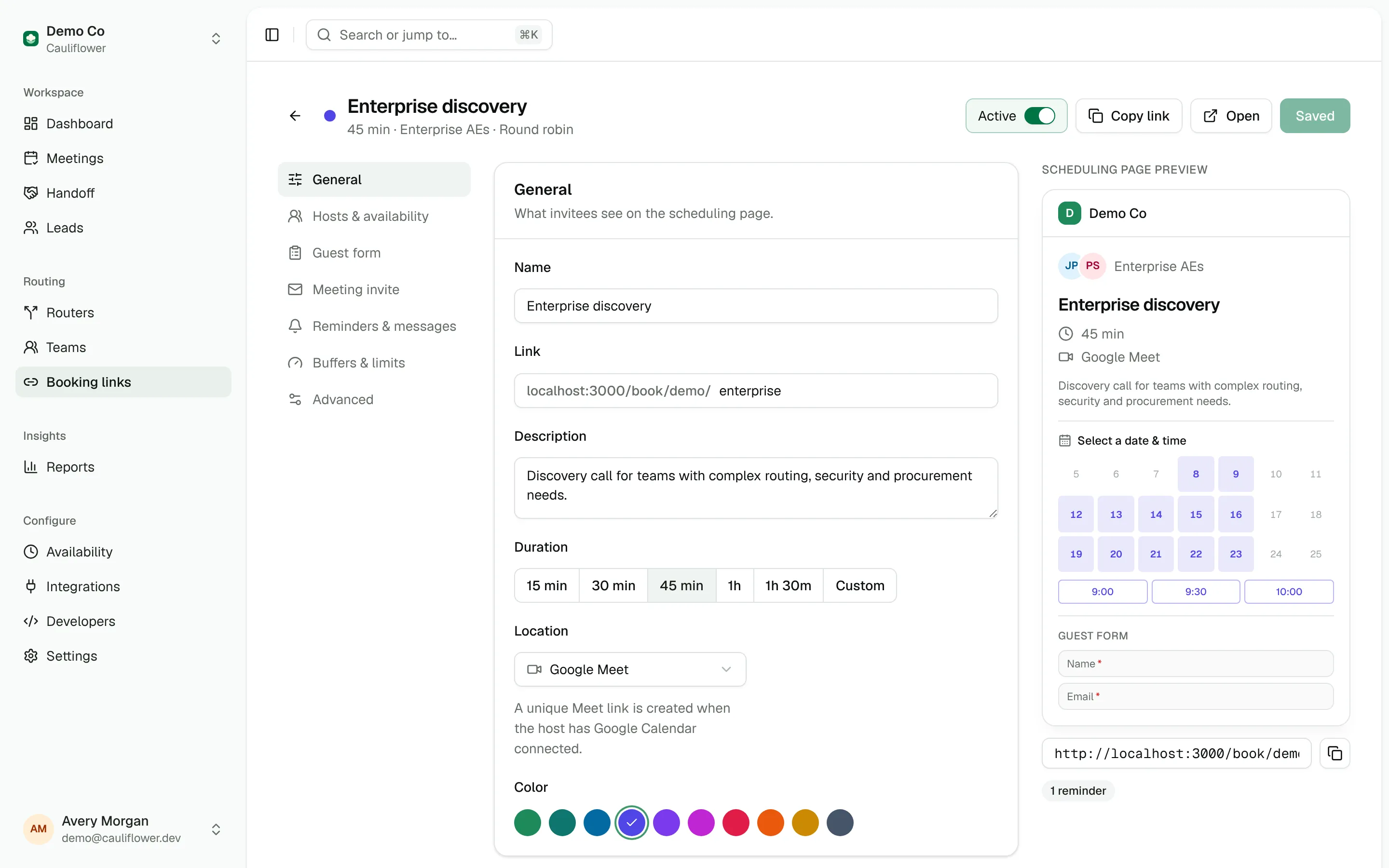
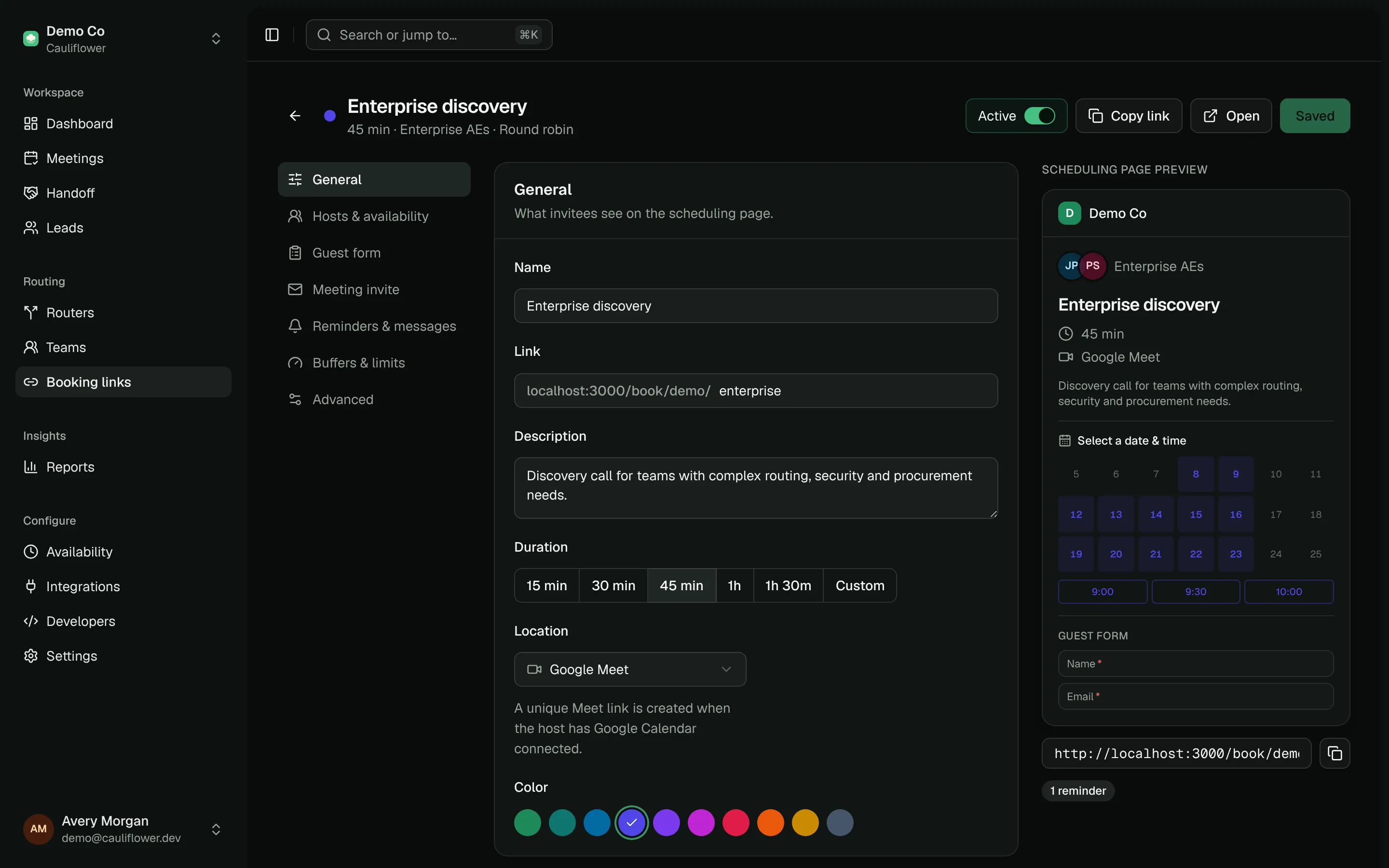
General
| Setting | What it does |
|---|---|
| Name | Shown on the booking page and in emails. Also the {{meeting}} tag. |
| Link | The URL slug: lowercase letters, numbers and dashes. Generated from the name until you edit it. Slugs are unique per workspace; a duplicate gets -2, -3 and so on. |
| Description | Shown on the booking page under the details. |
| Duration | 15, 30, 45, 60 or 90 minutes, or a custom length from 5 to 720 minutes. |
| Location | Where the meeting happens (see below). |
| Color | Marks the meeting type in the app and on your workspace booking page. |
The Active switch in the header turns the public page on and off. An inactive link's page returns "not found" and its public booking endpoint rejects new bookings.
Location types
| Location | Behavior |
|---|---|
| Google Meet | A unique Meet link is created on the calendar event when the host has Google Calendar connected. Without a connected calendar the location reads "Google Meet" but no link is generated. |
| Phone call | The booking form requires the invitee's phone number and the location becomes "Phone: …" with their number. You can add an optional host number, used when no invitee number is available (for example, API bookings). |
| In person | Requires an address, shown on the booking page and in the invite. |
| Custom link (Zoom, Teams…) | Requires a meeting URL. Every meeting of this type uses the same link. |
| Ask invitee | The booking form asks "Where should we meet?". If the answer is a URL, it becomes the meeting link. |
Hosts
Pick one of three hosting modes under Hosts & availability.
| Mode | Who hosts | Which times are offered |
|---|---|---|
| One host | A single workspace member. | That person's free times. |
| Round robin | One member of a team, picked per booking. | Flexible teams: any time at least one active member is free. Strict teams: only the free times of the next rep in line. |
| Collective | Every active member of a team, together. | Only times when every active member is free. |
Round robin and collective links require a team, and only admins can create or edit them. Members can create and manage One host links for themselves.
For round robin, the team's settings decide who gets each meeting: its distribution mode and whether it's flexible or strict. When an invitee picks a time, the fairest rep who is free at that moment gets it. See Teams and round robin.
A collective meeting is created on the first host's calendar with the other members as co-hosts. Paused team members are left out of both modes.
Required internal guests are added per booking rather than per meeting type: in Handoff, add teammates under Additional teammates and keep Required on. They must be free at the chosen time and join as co-hosts.
Scheduling rules
These settings live under Hosts & availability and Buffers & limits. Working hours themselves come from each host's availability.
| Setting | Default | Range | What it does |
|---|---|---|---|
| Minimum notice | 4 hours | 0 minutes to 30 days | How soon the earliest bookable time is. The editor offers presets from "No minimum" to "2 days". |
| Availability range | 60 days ahead | 1–365 days | How far into the future invitees can book. |
| Start time increments | The duration | 5–720 min | Spacing between offered start times. A 60-minute meeting with 30-minute increments offers 9:00, 9:30, 10:00… |
| Buffer before / Buffer after | 0 | 0–240 min | Free time required before and after the meeting. A slot is only offered if the buffered window doesn't overlap anything on the host's calendar. |
| Max per host per day | Unlimited | 1–100 | Caps confirmed meetings of this type per host per day, counted in the host's time zone. |
| Max per host per week | Unlimited | 1–500 | The same cap per ISO week (Monday to Sunday) in the host's time zone. |
When a host reaches a daily or weekly limit, that host's remaining times for the day or week disappear. On a round robin link, other reps keep the slots open.
Internal bookings are more relaxed
Bookings made in Handoff, or made directly against a meeting type through the REST API or MCP, need at most 5 minutes of notice and can look at least 120 days ahead, regardless of these settings. Buffers and daily and weekly limits still apply.
Limit bookings per prospect
Turn on Limit bookings per prospect to stop the same person or company from booking this meeting type over and over. The rule reads like a sentence:
At most 1 meeting per week for each email address
- Count: 1 to 100 meetings.
- Period: day, week, month or year. The limit counts confirmed and completed meetings of this type that start in the same calendar period as the requested time.
- Scope:
email addresscounts the invitee's own bookings.company domaincounts every booking from the same email domain. Personal addresses (gmail.com, outlook.com and so on) are always counted per email, so one Gmail user can't block another.
When the limit is reached, the invitee sees "You already have a meeting booked for this period. Check your inbox for the details." (or the company version for domain limits). The limit applies to public booking pages and router bookings, not to Handoff, API or MCP bookings.
Guest form
Name and email are always collected. Add up to 30 extra questions with Add question.
| Type | Input |
|---|---|
| Short text, Long text | Single line or multi-line text |
| Email, Number | Validated inputs |
| Phone number | A country picker (preset from the visitor's browser), formatting as they type and validation. Saved in international format, e.g. +14155552671. |
| Website | Accepts acme.com and saves https://acme.com; rejects anything that isn't a website. |
| Dropdown, Multiple choice | Pick one or several choices. Edit choices one per row: Enter adds a row, pasting a list adds them all and rows can be dragged to reorder. |
| Checkbox | A single yes/no box, for example a consent checkbox |
Each question has:
- Required: invitees can't submit without an answer. Required questions are enforced on public pages and router bookings; Handoff, API and MCP bookings can skip them.
- Key: the answer's identifier, used in prefill URLs and in the API. Keys must be unique within the meeting type.
- Lead field: when set (for example
companyorteam_size), the lead's value for that field prefills the question and the answer is written back to the lead.
Answers appear on the meeting, in the host's notification email, in the {{answers}} tag and in the Attio meeting note. A question with the key company also sets the lead's company. Invitees can additionally add up to 10 guests by email.
Meeting invite
The Meeting invite section controls the calendar event created on the host's calendar. Click a tag below either field to insert it at the cursor; the preview renders with sample values.
- Event title defaults to
{{meeting}} · {{invitee}} <> {{host}}. It becomes the meeting's title in Cauliflower, on the calendar event and in the.icsfile. - Event description is the body of the calendar event. Leave it empty to use the default, which lists the invitee, company, answers, notes and a reschedule/cancel link.
| Tag | Value | Example |
|---|---|---|
{{meeting}} | Meeting name | Product demo |
{{invitee}} | Invitee full name | Jane Cooper |
{{invitee_first_name}} | Invitee first name | Jane |
{{invitee_email}} | Invitee email | [email protected] |
{{company}} | Company | Acme |
{{host}} | Host name | Alex Kim |
{{host_first_name}} | Host first name | Alex |
{{duration}} | Duration | 30 min |
{{location}} | Location or video link | https://meet.google.com/abc-defg-hij |
{{answers}} | Guest form answers, one Label: value per line | Team size: 50 |
{{notes}} | Booking notes, such as Handoff notes, prefixed with "Notes:" | Notes: Interested in round robin |
{{manage_url}} | Reschedule / cancel link | https://cal.example.com/booking/… |
The title only supports the first seven tags, because location, answers, notes and the manage link aren't known when the title is rendered. Unknown tags render as empty text.
{{meeting}} with {{host_first_name}}

{{invitee}} ({{company}}) booked this through our website.

{{answers}}

{{notes}}

Join: {{location}}
Reschedule or cancel: {{manage_url}}
Notifications
Choose which emails this booking link sends and what they say. Each email has a switch and an Edit button:
- Booking confirmation, Rescheduled, Cancellation and Reminder, to the invitee and their guests;
- Host notifications, to the host and co-hosts when a meeting is booked, moved or cancelled.
Edit opens the email with a live preview. Changes apply to this booking link only and are saved with it; until you edit one, the link uses the workspace's version from Settings → Emails (see Email). Use workspace wording removes the link's own version. A switch that's off at workspace level (Settings → Workspace → Notifications) shows as off here too.
Reminder emails go to the invitee and their guests before the meeting. Add up to five from the presets: 1 week, 2 days, 1 day, 4 hours, 1 hour or 15 minutes before. New meeting types start with a single reminder one day before.
Reminders that would fall in the past at booking time are skipped. If every reminder is skipped and the meeting is more than 90 minutes away, a single reminder goes out one hour before. Reminders move with the meeting when it's rescheduled and are dropped when it's cancelled.
Reminders are sent only when Reminders and Invitee confirmations are both on under Settings → Workspace → Notifications, and the link's own Reminder switch is on. See Email.
After booking
Confirmation message is shown on the confirmation screen after booking, for example preparation notes. Redirect after booking sends the invitee to a URL of yours a moment after they book; a router's Redirect step overrides it for routed leads.
Invitee permissions
Under Advanced:
| Setting | When on | When off |
|---|---|---|
| Invitees can reschedule | Reschedule links appear in emails, on the confirmation screen and on the manage booking page. | The links are hidden and online rescheduling is refused with "Please reply to your invitation email." |
| Invitees can cancel | Cancel links appear in emails, on the confirmation screen and on the manage booking page. | Invitees reply to the invitation to cancel. |
| List on the public page | The link appears on /book/<workspace>. | The link is unlisted but still works by direct URL, in routers and in Handoff. |
Hosts, co-hosts, the teammate who booked the meeting and admins can always reschedule or cancel it from the meeting page in the app. See Booking pages for what invitees see.
Duplicating and deleting
Each booking link card's menu can duplicate a meeting type, keeping every setting, or delete it. Before deleting one, update any router path that books it.
Related
Working hours, date overrides, calendar conflicts and how slots are computed.
Booking pagesThe public pages, embedding, prefill, rescheduling and cancellation.
Path stepsUse a meeting type in a router's Display calendar step.
Round robin booking linksShare one link that rotates fairly across a team.