Scheduling
Booking pages
Hosted pages, embedding, branding, rescheduling and cancellations.
Booking pages are the public, branded pages where leads pick a time. They need no login, work on any device and can be shared as a link, embedded in an iframe or opened by the website widget. Every booking also gets a private page where the invitee can reschedule or cancel.
Page types
| URL | What it shows |
|---|---|
/book/<workspace> | Your workspace page: every active meeting type with List on the public page turned on. |
/book/<workspace>/<link> | One meeting type. Works for unlisted meeting types too, but returns "not found" when the meeting type is inactive. |
/r/<token> | A router booking page, created when a router sends a lead to a calendar. |
/booking/<uid> | The manage booking page for one meeting. |
With the workspace slug acme, a "Product demo" link is at:
https://cal.example.com/book/acme/product-demoThe workspace slug is the Public URL under Settings → Workspace. Changing it breaks every link you've already shared.
Router booking pages
When a router path ends in a calendar, the routing response includes a booking_url of the form /r/<token>. The widget opens it in a modal for you; the REST API returns it so you can send it to the lead yourself.
A router booking page differs from a plain booking link:
- It only offers the hosts the router chose for this lead: the record owner, the next rep in a strict rotation or the whole team pool.
- The lead's name, email and phone are already filled in. Questions are prefilled from the submitted form, matched by the question's lead field (or its key when it has no lead field).
- The calendar headline from the path (or the router's default) is shown under the meeting name.
- The token can be used for one booking. Opening it again shows "You've already booked a meeting" with a link to manage it.
- The token expires after 7 days. An expired link asks the lead to submit the form again.
Tokens for leads that were disqualified or assigned show the router's message instead of a calendar.
The booking flow
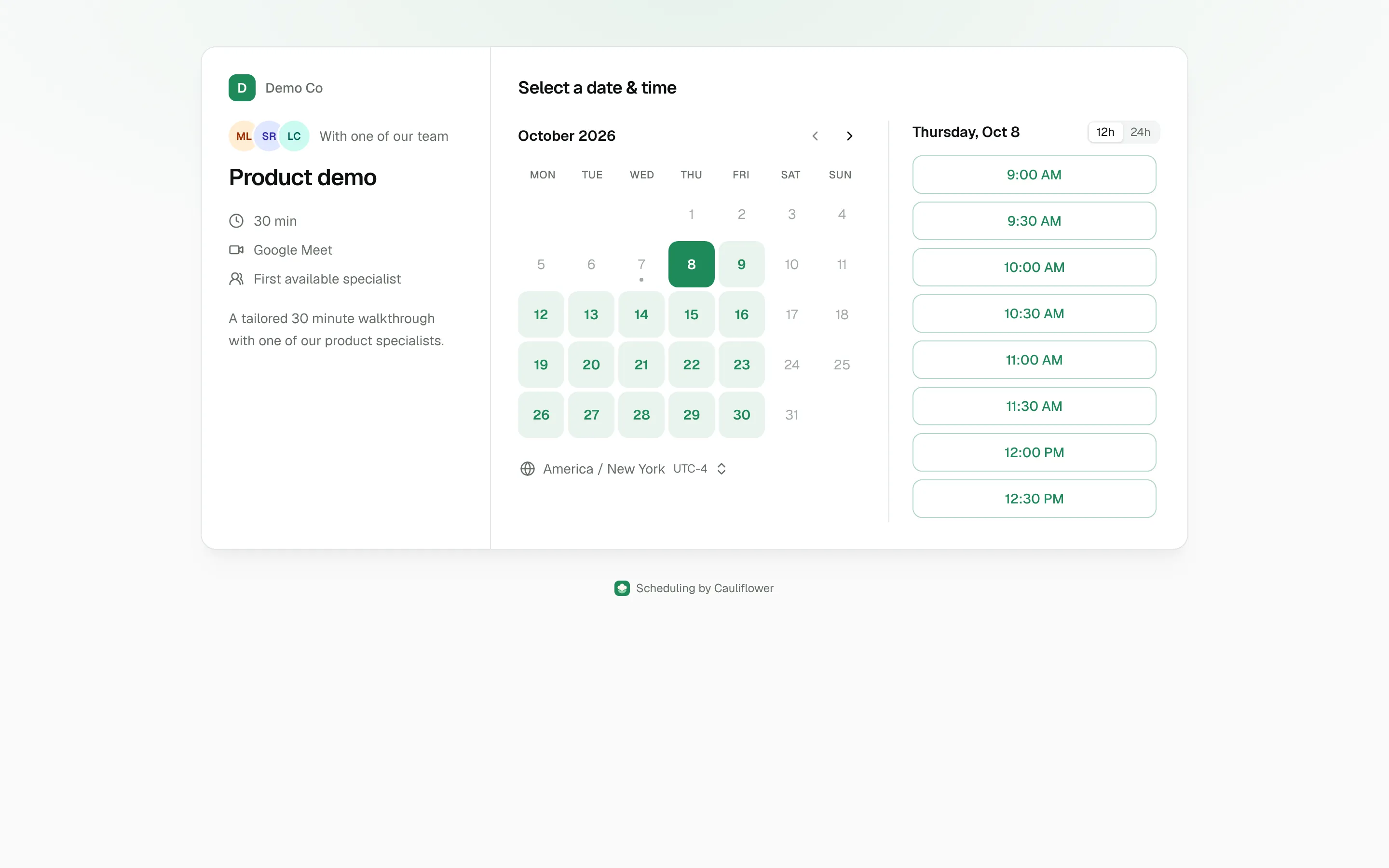
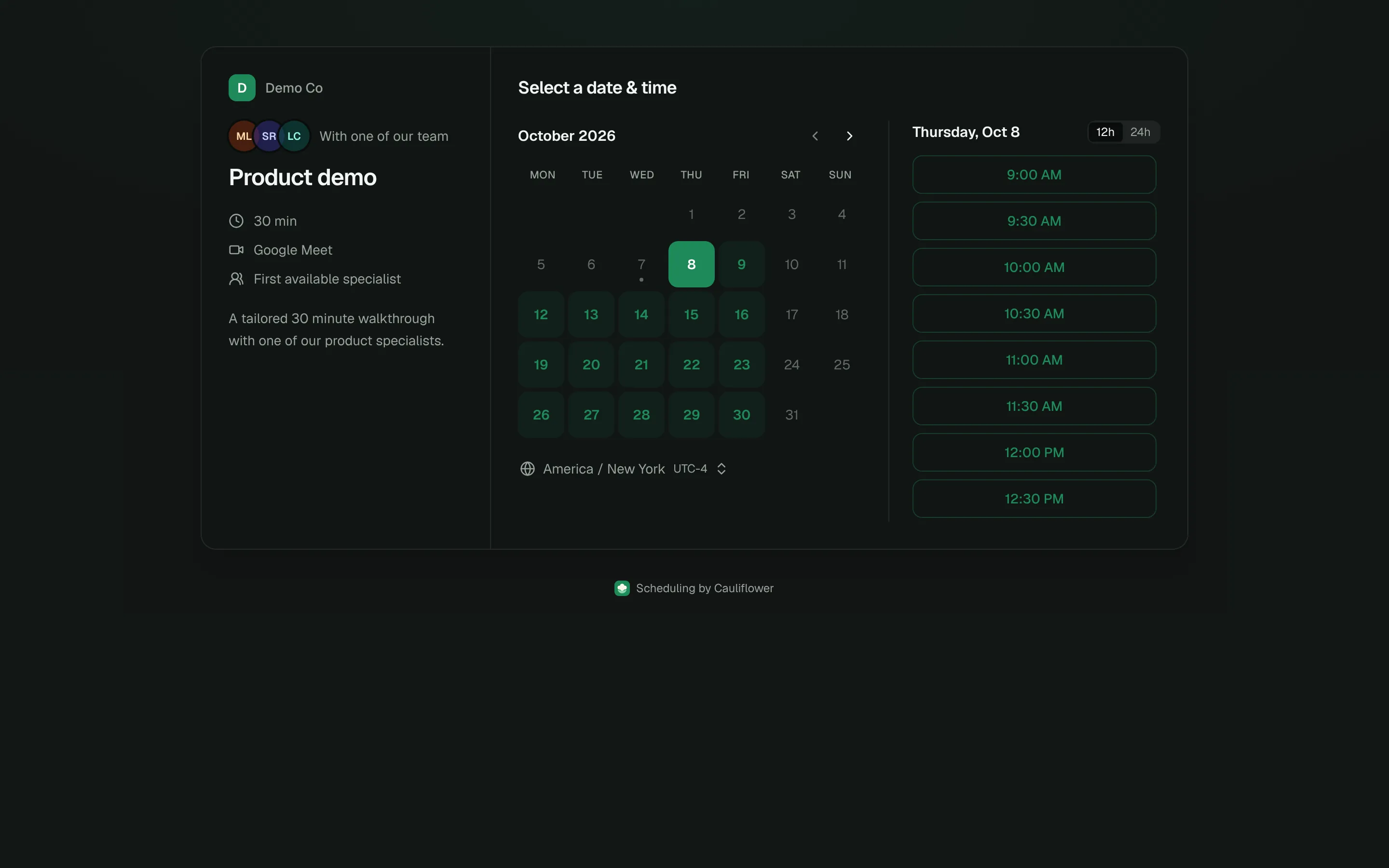
- Select a date & time. Times are shown in the invitee's browser time zone, which they can change. Days without availability are disabled.
- Enter your details. Name and email are always required. A phone number is required for phone-call meetings, "Where should we meet?" appears for "Ask invitee" meetings, then the meeting type's questions. Invitees can Add guests (up to 10 email addresses).
- Confirm booking. If the time was taken in the meantime, the page explains and returns to the calendar with fresh times.
The left column shows the hosts, meeting name, duration, location and description. Round robin links show "With one of our team" and "First available specialist"; collective links show "With the team".
Prefilling the form
Add query parameters to a /book/ URL to prefill the details form:
| Parameter | Prefills |
|---|---|
name | Name |
email | |
phone | Phone number |
| A question's Key | That question's answer |
| A question's Lead field | That question's answer, when the key isn't present |
https://cal.example.com/book/acme/product-demo?name=Jane%20Cooper&email=jane%40acme.com&company=Acme&team_size=50Here company and team_size fill the questions whose key or lead field has that name. Unknown parameters are ignored. Prefilled values stay editable.
The widget's open and inline commands build these URLs for you from prefill and from values passed to identify. See the JavaScript API.
Embedding
Add ?embed=1 to any /book/<workspace>/<link> or /r/<token> URL to get the embeddable version: no page background, no footer, and messages to the parent page when the invitee books, closes or needs to be redirected.
<iframe
  src="https://cal.example.com/book/acme/product-demo?embed=1"
  title="Book a demo"
  style="width: 100%; min-height: 700px; border: 0"
></iframe>
Booking pages are allowed in iframes on any site, while the rest of the app is not. For a frame that resizes itself to fit its content, use the widget's inline command instead of a raw iframe; for a popup, use open.
<div id="demo-calendar"></div>
<script>
  cauliflower("inline", { link: "product-demo", target: "#demo-calendar" });
</script>
Branding
Branding is set once per workspace under Settings → Branding and applies to booking pages, hosted router pages, the widget and emails: brand and accent colors, logos for light and dark backgrounds, font, corners, page background and team photos. See Branding and hosted pages.
When a logo is uploaded, pages show only the logo — the workspace name appears next to the brand initial only when there's no logo. Uploaded images are served from your own domain at /media/…. Hide "Scheduling by Cauliflower" removes the footer from public booking pages; embedded pages never show it.
Confirmation page
After booking, the invitee sees "You're scheduled" with:
- the meeting type's Confirmation message, if you set one;
- the meeting title, host, date, time and time zone, and the video link or location;
- Google Calendar and Outlook buttons that open a prefilled event, and an .ics download;
- Add guests, to invite colleagues to the meeting: they get the confirmation email, and the calendar event is updated so they receive the invitation;
- a link to the manage page, labelled Reschedule or cancel, Reschedule or Cancel depending on what the meeting type's invitee permissions allow.
When invitees can neither reschedule nor cancel, the manage link is hidden, and the Google Calendar and Outlook events leave it out of their description.
When the meeting type has a Redirect after booking URL, or the router path ends with a Redirect step, the invitee is sent there about two seconds after booking. In an embed, the redirect happens in the parent page.
Managing a booking
Every meeting has a manage page at /booking/<uid>, linked from the confirmation page, the confirmation and reminder emails and the default calendar event description. The uid is a long random token, so the link works without logging in.
The page shows the meeting details and, while the meeting is upcoming and confirmed:
- Reschedule: pick a new time from the same host's availability (all hosts for collective meetings). The calendar event is moved, the host and invitee are notified and reminders move with it.
- Cancel: optionally tell the host why, then confirm. The calendar event is deleted and everyone is notified.
Each button only appears when the meeting type allows it (Invitees can reschedule / Invitees can cancel). Past and cancelled meetings can't be changed; a cancelled meeting shows its reason.
Emails link straight to each action with ?action=reschedule or ?action=cancel:
https://cal.example.com/booking/<uid>?action=rescheduleCalendar files
GET /api/public/bookings/<uid>/ics downloads the meeting as an .ics file with the title, time, location and a link to the manage page. For a cancelled meeting it's a cancellation (METHOD:CANCEL), so calendar apps remove the event.
Invitee emails attach the same file when the host doesn't have Google Calendar connected. When the host is connected, Google sends the calendar invitation instead. See Email.
Under the hood
Booking pages use a small public API that you can also call from your own front end. These endpoints accept cross-origin requests, and the slot and booking endpoints are rate limited per IP address.
| Endpoint | Purpose |
|---|---|
GET /api/public/slots?workspace=acme&link=product-demo&from=…&to=… | Available times for a meeting type, or pass token instead of link for a router booking. |
POST /api/public/book | Book a time. JSON body with workspace, link or token, start, timezone, name, email and optional phone, location, answers and guests. The returned meeting includes manage_url, plus can_reschedule and can_cancel from the meeting type's invitee permissions. |
GET /api/public/bookings/<uid>/slots | Times available for rescheduling. |
POST /api/public/bookings/<uid>/reschedule | Move a booking: start, optional timezone and reason. |
POST /api/public/bookings/<uid>/cancel | Cancel a booking with an optional reason. |
For server-side integrations with authentication, use the REST API instead.