Routing
Teams and round robin
Distribution modes, strict vs flexible, weights, priorities and fairness.
A team is a group of reps who share meetings. Each team decides two things: what a prospect sees when they book (the round robin mode) and how the next rep is picked (the distribution). Weights, priorities and pausing let you tune the split, and fairness reporting shows whether it is working.
Teams power round robin and collective booking links, the Team via round robin target in router steps, owner fallbacks and Handoff. Only owners and admins can change team settings.
Create a team
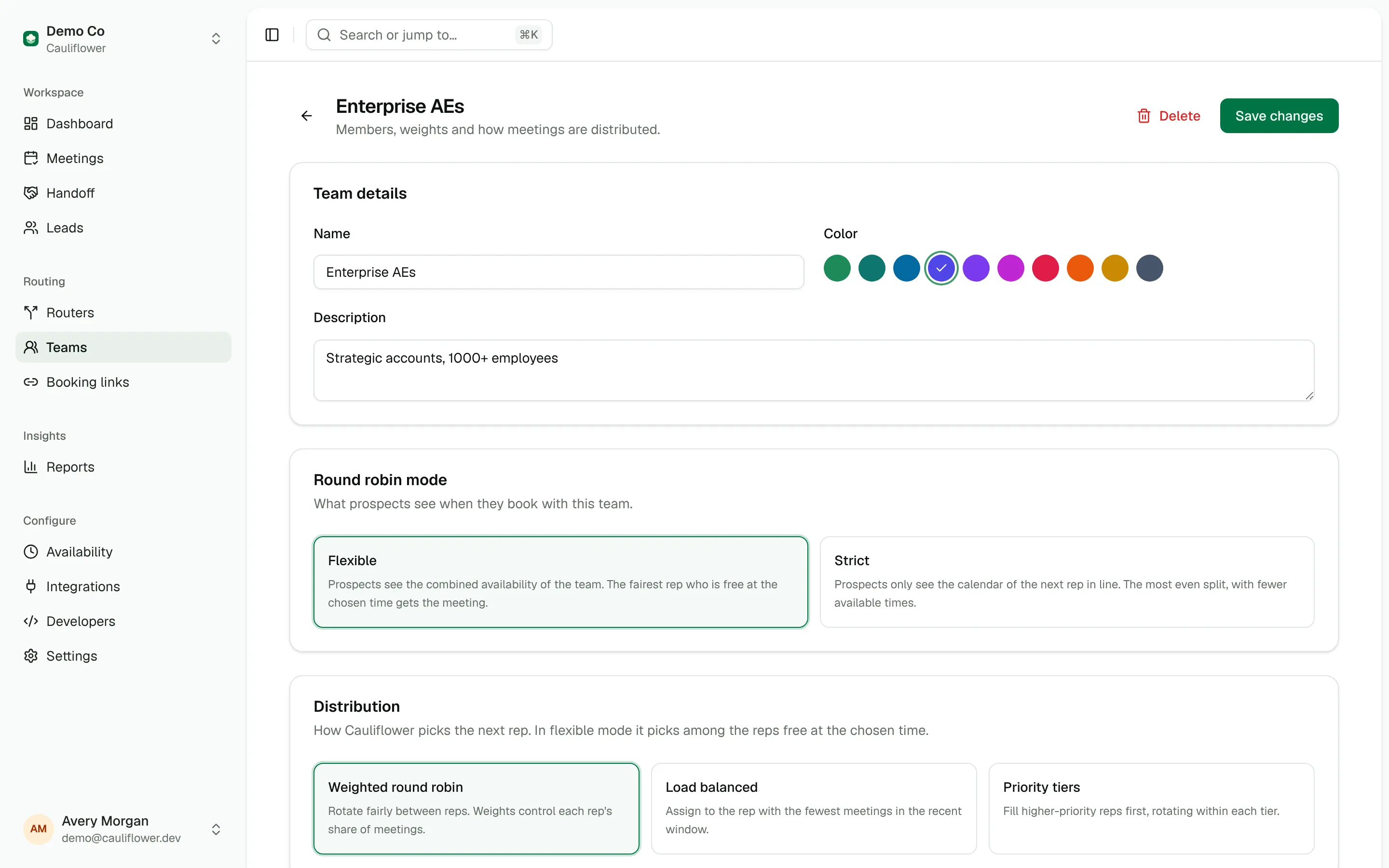
Open Teams and click New team. Give the team a name, a color and an optional description, pick a round robin mode and a distribution, then use Add members to add reps and click Create team. New workspaces start with a Sales team that contains the owner.
You can also manage teams over the API with create_team, update_team and set_team_members.
Strict or flexible
The round robin mode controls what prospects see when they book with the team.
| Mode | What prospects see | Who gets the meeting |
|---|---|---|
| Flexible | The combined availability of every active member | The fairest rep who is free at the chosen time |
| Strict | Only the calendar of the next rep in line | That rep |
Flexible is the default and offers the most times, so more leads find a slot that suits them. The split stays close to your targets because Cauliflower picks the fairest rep among those free at the chosen time.
Strict gives the most even split, at the cost of fewer available times. The next rep is picked when the calendar is shown, regardless of their calendar, and the rotation advances when the meeting is booked. Until then, other leads routed to the team see the same rep. In Handoff, strict teams lock the rep: the next rep in line gets the meeting.
Distribution modes
The distribution decides who is "next" or "fairest". It applies in both round robin modes.
Weighted round robin
Cauliflower divides each rep's assignment count by their weight, and the rep with the lowest result goes next. Ties go to the rep with the higher weight, then to the rep who was assigned longest ago.
With Ana at weight 2 and Ben at weight 1, the rotation runs Ana, Ben, Ana, Ana, Ben, Ana and so on, settling at two meetings for Ana for every one for Ben.
Load balanced
The rep with the fewest meetings in the recent window, divided by their weight, goes next. Choose the Load window (the last 7, 14, 30, 60 or 90 days).
Load balancing counts confirmed and completed meetings booked with each rep in that window, from any source and any team. A rep who is busy with other meetings gets fewer new ones. Assignments without a meeting don't count, so this mode suits calendar paths better than assign-only paths.
Priority tiers
Each member gets a Priority from 1 (Base) to 5 (Top). Cauliflower fills the highest tier first and rotates within a tier by weighted round robin. In flexible mode, lower tiers get a meeting when nobody in a higher tier is free at the chosen time, which makes this mode a good fit for "senior AEs first, overflow to the wider team". Members with a weight of 0 are backups and come after every tier.
Use priority tiers with flexible mode
In strict mode the next rep is picked without looking at calendars, so priority tiers send every meeting to the top tier while any rep there is active.
Weights
Each member has a weight from 0 to 100, set in the Weight column. A rep's target share is their weight divided by the total weight of the active members: with weights 2, 1 and 1, the first rep's target is 50% and the others' is 25% each.
A weight of 0 makes a rep a backup. They stay in the team's availability, but only get a meeting when no member with a weight above 0 can take it, for example when nobody else is free at the chosen time. This applies in every distribution mode, including priority tiers. A backup's target share shows as 0%. Use it for a rep who should only catch overflow.
Pausing members
Turn off a member's Active switch to take them out of rotation without losing their history, for example during vacation or onboarding. Paused reps aren't offered to prospects and aren't picked by routers, and reports mark them as paused.
When a rep joins a team or comes back from a pause, Cauliflower starts their count level with the least-loaded active rep, adjusted for weight. They pick up their normal share right away instead of receiving a burst of catch-up meetings.
Removing a member from the team deletes their rotation history for that team. Pause instead if you want to keep it.
What counts toward the rotation
A rep's Rotation count goes up by one when:
- A meeting is booked with them through a team, from a round robin booking link, a router calendar step, a strict pick or a Handoff booking
- An Assign to step picks them from the team, including when the team is the fallback for a record owner
Cancellations, no-shows and reschedules don't change the count. Use the manual adjustments below to correct for them.
Manual credit and skip
Click a rep's number in the Rotation column to open Adjust rotation:
- Credit 1 lowers their count by one, so they come up sooner. Use it after a bad lead, a no-show or a meeting that was really someone else's.
- Skip 1 raises their count by one, as if they had an extra meeting. Use it when a rep is overloaded or took a lead outside Cauliflower.
Counts never go below zero, and each adjustment is recorded in the workspace's audit log. To start a new period with a clean slate, click Reset counts above the member list. The reset sets every count back to zero.
Fairness reporting
The Members table on the team page compares each rep's Share (target vs. actual): the bar shows their actual share of the team's current rotation counts, and the marker shows the target from their weight. Last assigned shows when they last got a lead.
For a period view, open Reports and the Teams tab. Each team shows, for the selected date range:
- Every rep's total: meetings hosted for the team plus leads assigned to them without a meeting
- Their actual share next to their target share
- The difference in points, highlighted when a rep is more than 5 points over or under target
Small differences are normal while volumes are low. If a rep stays well below target, check their working hours and calendar: in flexible mode, a rep who is rarely free at the times prospects pick will get fewer meetings.