Routing
Routers
Build a routing flow: trigger, lead matching, paths and the catch-all.
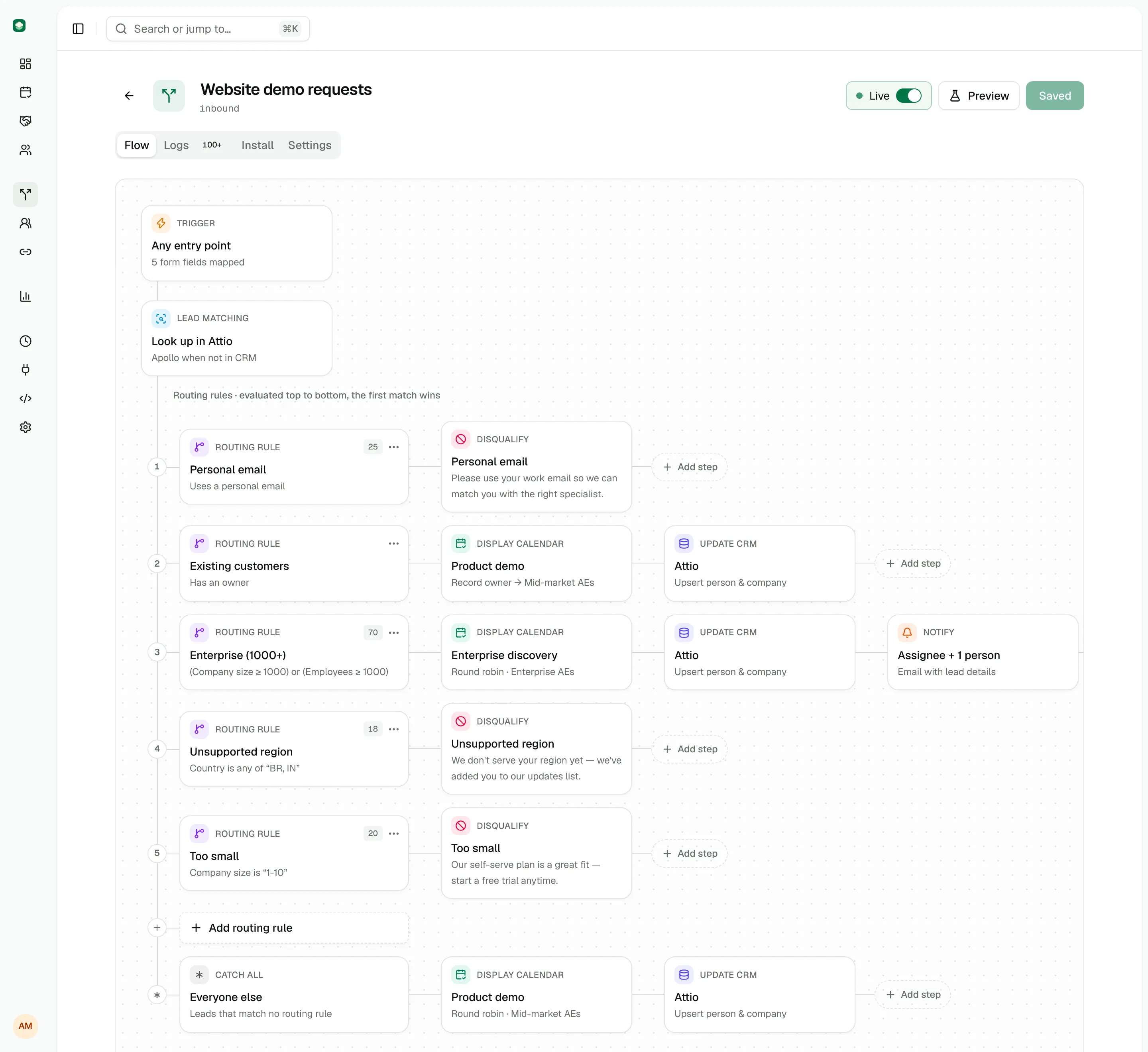
A router turns a form submission, an API call or a teammate's handoff into a decision: show a calendar, assign an owner, notify someone, update the CRM, redirect or disqualify. You build it as a flow on a canvas, test it with the live preview and publish it when it behaves the way you want.
Every router reads top to bottom: a trigger, a lead matching step, your paths in order and a catch-all for everyone else. Only owners and admins can edit routers; members can open them and run the preview.
Create a router
Open Routers, click New router, give it a name and an optional description, and click Create router. A new router starts with:
- All four entry points turned on
- Three form fields: Work email (required), Full name and Company
- CRM lookup on, and Apollo set to When not in CRM
- No paths, and a catch-all that shows the calendar of your oldest booking link with its own hosts, followed by an Update CRM step (the catch-all starts empty if the workspace has no booking links yet)
To start from an existing router instead, open its Settings tab and click Duplicate router. The copy starts paused. You can also create routers with the create_router operation of the REST API or from an AI agent over MCP.
The canvas
The Flow tab shows the router as a column of nodes. Click any node to configure it in the side panel.
- Hover the line between two nodes on a path and click the plus to insert a step at that position, or use Add step at the end of the row.
- Each path shows a small counter with the number of leads it matched in the last 30 days. Preview runs aren't counted.
- Nodes with a problem get a warning icon, and the header shows an issues badge listing everything that needs fixing.
Trigger
The trigger node controls where leads may enter the router and which form fields it knows about.
Entry points
| Entry point | What it covers |
|---|---|
| Website form | Submissions from the website widget: forms bound with the widget and the widget's JavaScript route command |
| Router link | The hosted router page, a shareable form at /try/<workspace>/<router> |
| API & AI agents | The REST API and the MCP server only |
| Handoff | Teammates booking on a lead's behalf in Handoff |
Turn off the entry points a router shouldn't serve. A Handoff-only router, for example, rejects website submissions with an error. At least one entry point must stay on. The preview always works, whatever you select.
Form fields
Form fields describe what your form sends. Each has a key, a label, a type (short text, long text, email, phone number, website, number or dropdown), a required switch and, for dropdowns, a list of choices. Phone numbers are validated and stored in international format, and websites are normalized to https://…, whichever form sends them. Fields appear in the condition builder, on the hosted router page and in Handoff.
Fields you don't declare are still available to your rules by their key, and common names are recognized automatically, for example work_email as the email or organization as the company. See Form fields and custom fields.
Lead matching
Lead matching runs before any path is evaluated, so every rule can use what it finds.
- Match against your CRM looks the lead up in Attio by email and company domain. Rules can then use
crm.*fields, and steps can route to the record owner. - Enrich with Apollo fills in title, seniority, department and firmographics as
enrichment.*fields. Choose Off, When not in CRM or Always.
The panel shows whether each integration is connected. If one isn't, the setting is kept but has no effect. Lead enrichment explains the waterfall, caching and credits in detail.
Paths
A path is a rule plus up to ten steps, at least one of which must display a calendar, assign, redirect or disqualify. Cauliflower evaluates enabled paths from top to bottom and runs the steps of the first path that matches. Later paths are not evaluated at all.
Click Add routing rule to add a path. The menu offers common node combinations, or an empty rule:
| Combination | Use it for |
|---|---|
| Rule + Display calendar + Redirect | Book a meeting, then send the lead to a thank-you page |
| Rule + Display calendar | Qualified leads book right away |
| Ownership rule + Owner's calendar | Known accounts go to their owner |
| Rule + Assign to + Notify | Assign an owner and alert them, without a meeting |
| Rule + Disqualify | Politely turn away leads that aren't a fit |
Combinations that book or assign also add an Update CRM step. Each path's menu lets you Move up, Move down, Duplicate, Disable or Delete path. Disabled paths are skipped and shown struck through.
Because the first match wins, order paths from most specific to most general. A typical router looks like this:
- Personal email: disqualify leads using a personal address.
- Existing customers: an ownership rule that books with the account owner.
- Enterprise:
enrichment.employeesgreater or equal1000, showing the Enterprise AE team's calendar. - Catch-all: everyone else books with the Mid-market team.
Paths and conditions covers rules, operators and fields. Path steps covers what each step does.
Catch-all
The Everyone else node at the bottom runs for leads that match no path, so nothing is lost when your rules don't cover a case. Common choices:
- Show a round robin calendar so every lead can still book.
- Disqualify with a friendly message and redirect to resources.
- Assign to a team and notify them, without a meeting.
Unlike a path, the catch-all may also be empty or hold only Notify and Update CRM steps. Unmatched leads are then logged with the outcome No match, and a website form submits as it normally would.
Test with the live preview
Click Preview to run the flow on sample data. The preview uses your current draft, including unsaved changes. Nothing is stored, and no emails, webhooks or CRM updates are sent.
Fill in the router's form fields, or use a preset (Enterprise lead, SMB lead, Personal email). Add anything else as JSON under Extra fields, for example {"utm_source": "google"}, then click Run preview. The result shows:
- The outcome, the matched path and its steps
- The meeting type, disqualification reason, redirect URL or message, as applicable
- Availability of: the reps whose calendar would be shown, and why (for example "Round robin · Enterprise AEs" or "Record owner (CRM)")
- The enrichment found for the lead and its source
- Path evaluation: every path with each condition, the expected value and the actual value, plus the owner found for ownership rules
- The full routing context: every field and value the rules could see
The canvas highlights the matched path and dims the rest until you clear the preview.
Enrichment runs for real
CRM lookups and Apollo enrichment do run during a preview, so previewing with real company emails uses Apollo credits.
Install and share
The Install tab has everything you need to put a router in front of leads:
- Hosted router page shows the URL of the router's shareable page, with Copy link and Test it buttons. See Hosted router page below.
- 1. Add the loader is the script to paste once on every page with a form.
- 2. Connect your form has snippets for a plain HTML form, HubSpot forms, the JavaScript API and server-side API calls, with your router's slug filled in.
See the website widget and JavaScript API guides for every option.
Hosted router page
Every router has a hosted page at https://cal.example.com/try/<workspace>/<router>. It's a real page you can share, headed with your workspace name (for example "Talk to Acme") and showing a form built from the router's form fields, wired to the widget. Link to it from emails, ads or your email signature when you don't have a form of your own.
Test it opens the same page with ?test=1, which adds a "Testing router" banner at the top. Visitors who follow the plain link never see it. Submissions are real either way: they create leads, routing events and meetings, so use a teammate's email address when testing. The page submits through the Router link entry point, which must be turned on in the trigger.
Save and publish
The switch in the header sets the router Live or Paused. The save button reads Publish changes for a live router and Save draft for a paused one, and it stays disabled while the issues badge lists problems.
Changes to a live router take effect for the next lead as soon as you publish. There is no separate draft copy of a live router, so to rework a busy router without affecting traffic, duplicate it, edit the paused copy and switch your form over when it's ready. A paused router rejects every submission with "This router is paused", while the preview keeps working.
The other tabs:
- Logs lists the last 100 routing decisions with the lead, outcome, matched rule, assignee, source and time.
- Settings holds the name, slug, description and the Default calendar headline shown above calendars when a step doesn't set its own. Danger zone has Duplicate router and Delete router. Deleting stops routing immediately and keeps the routing history for reports.
Changing the slug
The widget, the router link and the API address routers by slug. Update your embeds when you change it.